How to Set a Daily Time Limit on Instagram (iPhone)
Instagram gives you two time tools: a daily limit and sleep mode. Here's how to set both, and why neither is built to actually stop you.
Instagram has had built-in time management tools since 2018. Eight years of features meant to help you use Instagram less, all from the company that got rich on the infinite scroll. Here's how to set up both tools, and the part Meta leaves out of the help docs.
Tool 1: Daily Time Limit
- 1.
Open Time management
Tap your Profile icon, then the three-line menu in the top-right corner. Tap Settings and activity, then Time management.
- 2.
Tap Daily limit
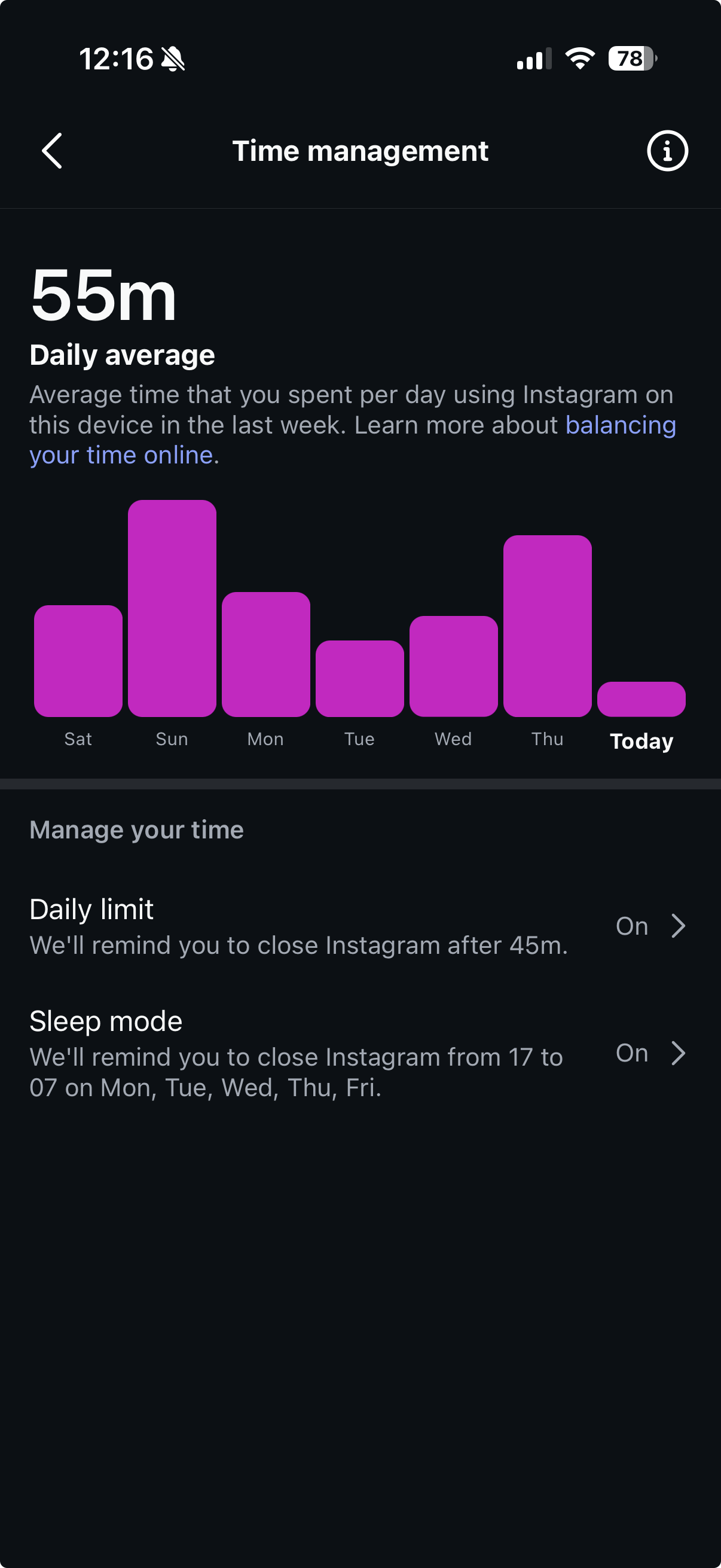
Under Manage your time, tap Daily limit. You'll also see your daily average usage for the past week here.
- 3.
Set your daily limit
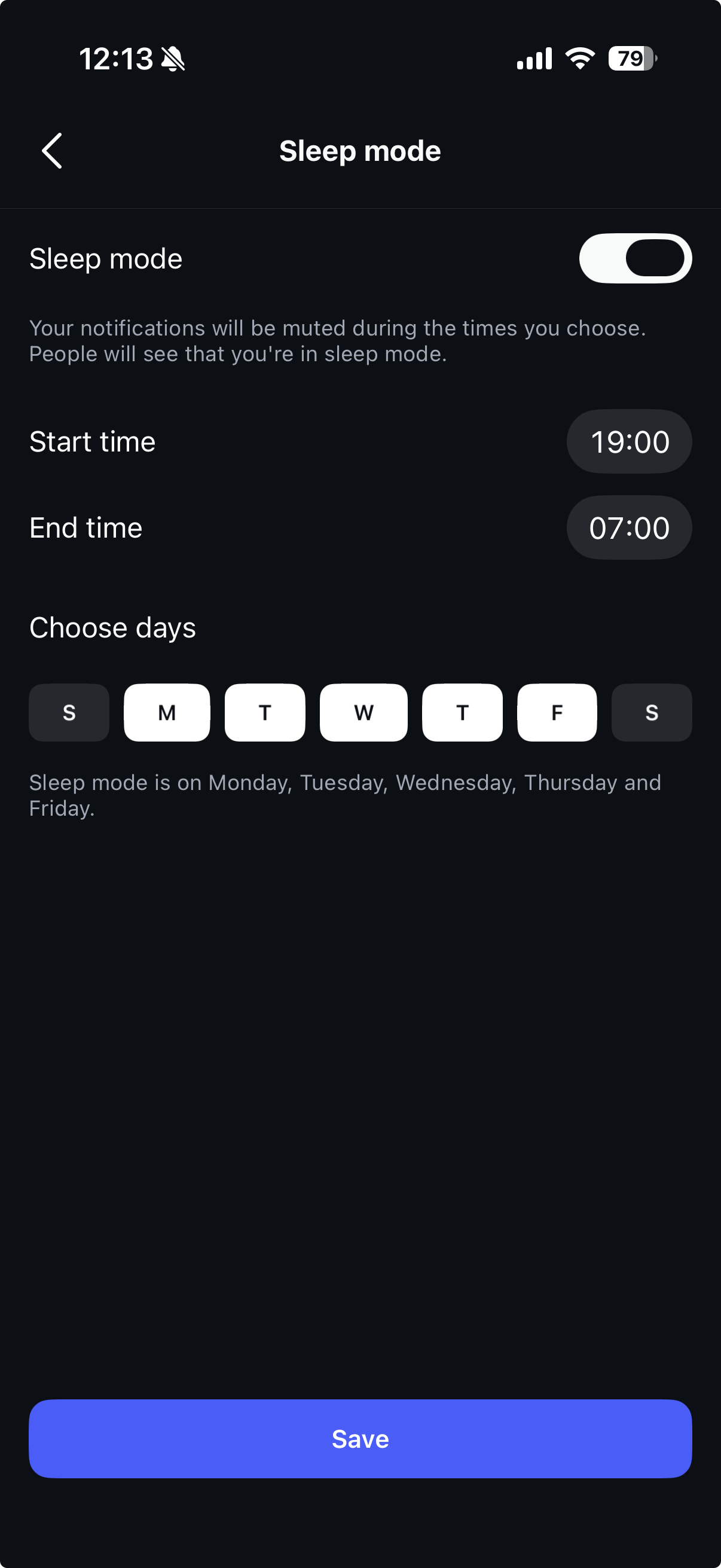
Choose from 15 minutes, 30 minutes, 45 minutes, 1 hour, or 2 hours. Instagram saves your choice automatically.
What happens when you hit the limit: Instagram fires a single notification once your minutes for the day add up to the number you set, and that's all it does. It's adding the day up in total rather than watching the session you're in, so the reminder only lands after the scrolling has already happened.
Tool 2: Sleep Mode
- 1.
Same path as above
Profile → ☰ → Settings and activity → Time management.
- 2.
Turn on Sleep mode
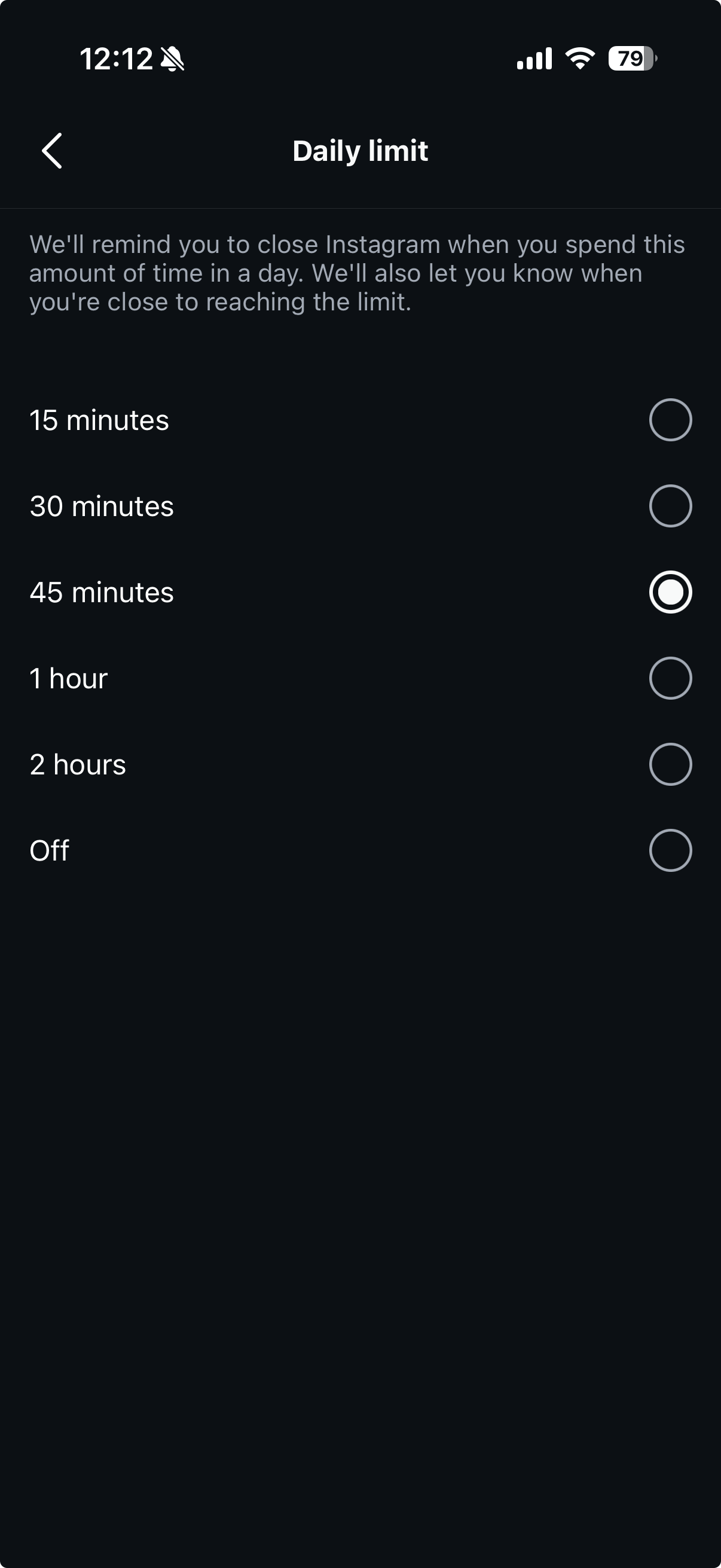
Tap Sleep mode and toggle it on. Set a Start time and End time, pick the days it applies, then tap Save.
What happens: during the window you set, Instagram mutes its own notifications and shows other people that you're in sleep mode. Beyond that it won't lock anything or stop you opening the app, and it just goes quiet, so if you reach for Instagram yourself at 1am, nothing's there to slow you down.
The Honest Part
The weakness isn't that the daily limit is too gentle. The trouble is that it's cumulative, quietly adding up your minutes all day and reacting a single time when the total tips over, with no idea whether that was one long sitting or twenty restless reopenings. By the time it says anything the scroll has already happened, and tomorrow it starts the same blind count from zero.
Sleep mode runs on the clock rather than on what you're actually doing: it silences Instagram's notifications between the hours you choose and lets people know you're away. That can help at the edges of the day, but it's another fixed daily rule that's blind to the moment, so if you open the app yourself at 11pm, it has nothing to say.
And then there's the obvious part: Instagram's entire business runs on time spent in the feed, so these tools exist because regulators and researchers leaned on Meta, not because Meta actually wants you to leave sooner. A once-a-day reminder from the company that profits when you stay isn't a safeguard. It's a checkbox.
Instagram's reminder is a referee who works for the other team
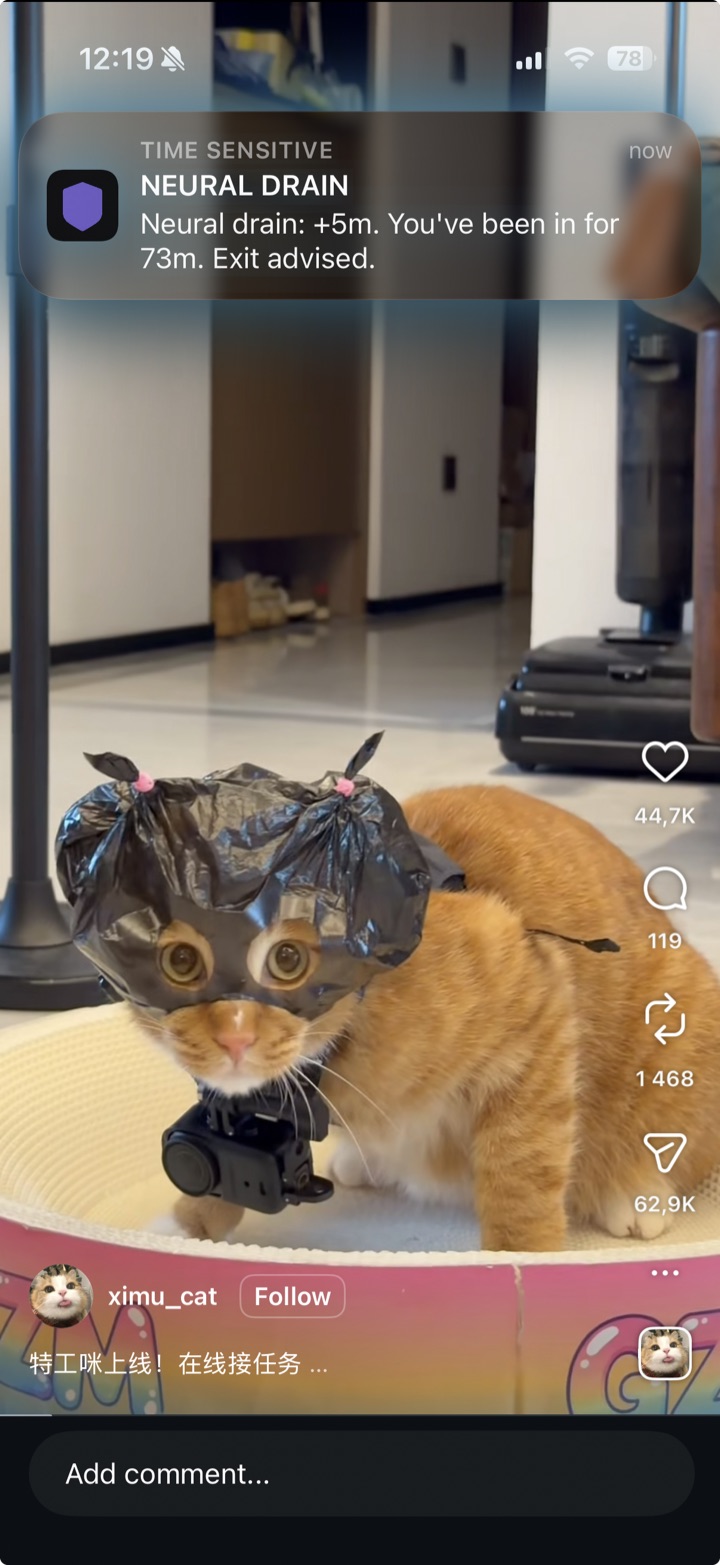
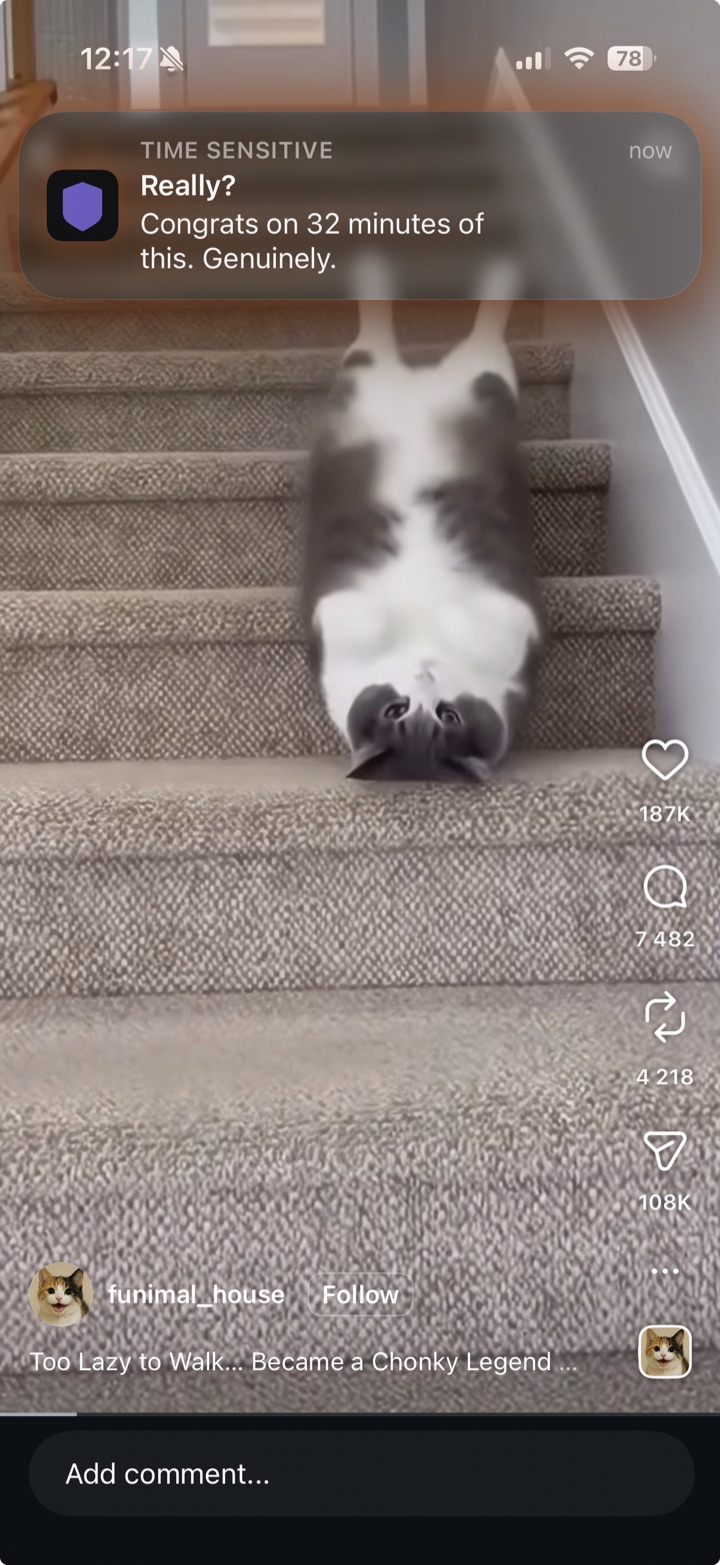
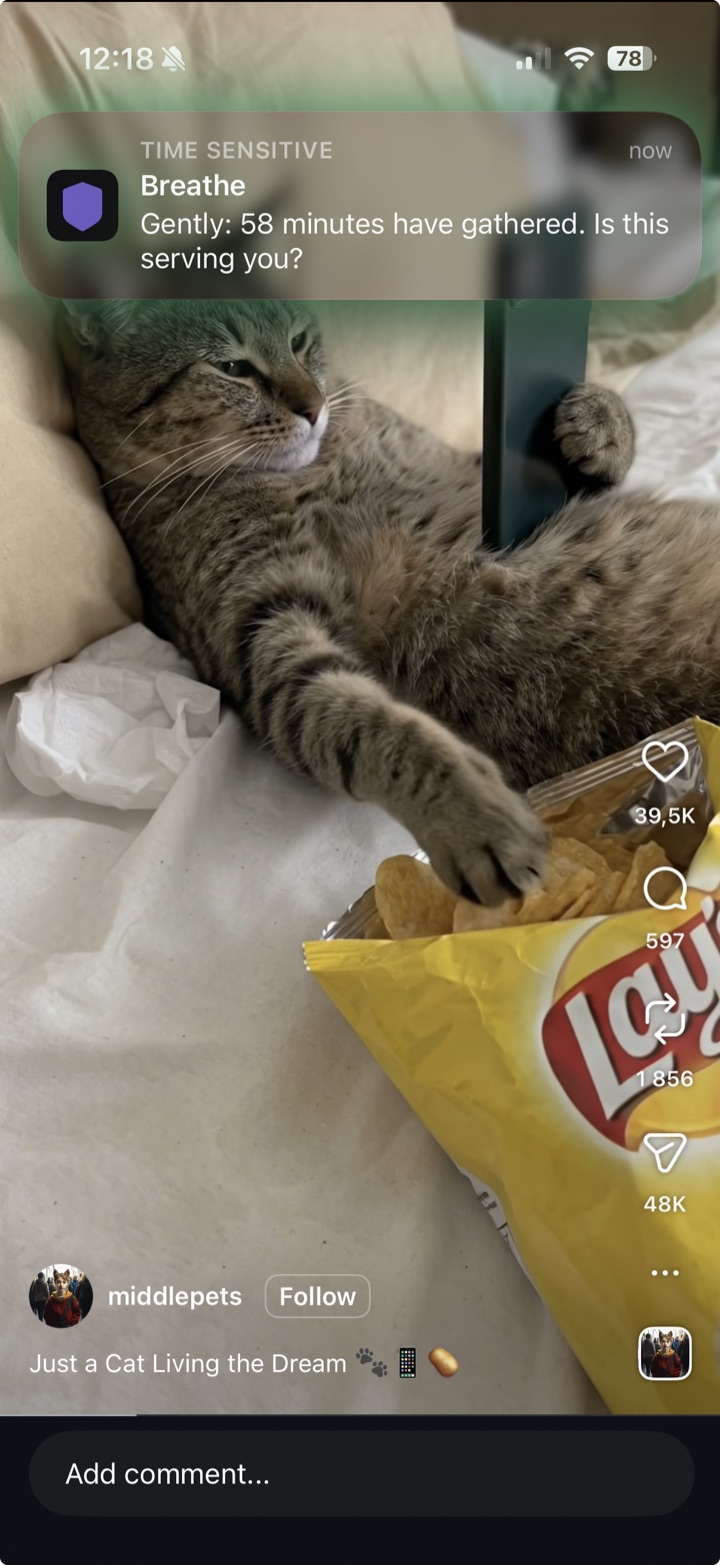
DoomGuard takes the opposite approach, and the difference isn't a taller wall. Hard limits tend to smother, and a cage you can't get out of only makes the feed more tempting, so DoomGuard leaves the door open on purpose: if you want to be here, you can. What it adds is a session-aware nudge the moment a quick look is turning into a spiral, pulling you back to a conscious choice instead of letting you scroll on autopilot. And since it doesn't make money from your minutes, it has no reason to look the other way: it checks in every session rather than once against a daily total you blew through hours ago, in whichever personality actually gets through to you. Here are three of them landing mid-scroll:
Quick verdict
Use Instagram's tools if
you actually act on notifications. The daily limit is genuinely useful if you respond to it, and sleep mode helps if late-night pings are what pull you in.
Consider DoomGuard if
you scroll on autopilot without noticing, or you reach for the app yourself during the hours that are meant to be quiet. A once-a-day ping and a mute switch on a timer aren't watching your sessions. They're watching Meta's reputation.